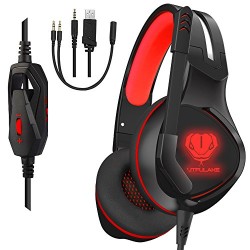
Gaming Headset, Gaming Headphones with mic for PS4, Xbox One, PC (Red)
★★★★★Note: Please contact us before you ask for a RETURN or give a REVIEW for the headset, we provide warranty service, and take care of all quality-related issues with a REPLACEMENT or REFUND. ※ The Headset is Compatible with the following Systems and Devices 1. Support the 3.-bit and 64-bit Win7 / Win8 / Win8.1
★★★★★Note:
Please contact us before you ask for a RETURN or give a REVIEW for the headset, we provide warranty service, and take care of all quality-related issues with a REPLACEMENT or REFUND.
※ The Headset is Compatible with the following Systems and Devices
1. Support the 3.-bit and 64-bit Win7 / Win8 / Win8.1 / Win10/XP
2. Support PlayStation 4, New Xbox One, PC, Nintendo 3DS, Laptop, PSP, Tablet, iPad, Computer, Mobile Phone.
※ How to Connect to A Controller ?
1. Plug 3.5 mm cable into directly the Controller which has a 3.5 mm Audio port.
★★★★★ Note:
An extra Microsoft Adapter (Not Included) is needed when connect with the Controller which without 3.5 mm Audio port.
※ How to Connect to PC ?
When using the headset on computer, you need to use Y Splitter Audio Cable.
1 is for the microphone and 1 is for audio.
Please make sure both Headset Microphone Switch and Computer Microphone Switch are turned on.
Please find the “speaker” icon in the computer taskbar, and double-click to enter the volume control for settings.
And enter into the “Voice” for setting on the “Control Panel”
※ USB cable
USB interface for power supply for the LED Light.
※ Mute Key & Volume Control Button
Before you adjust the volume, make sure the Mute key is turned off.
No Sound ? & Can’t Talk?
1. Make sure the Headset Microphone Switch is turned on, then adjust the volume.
2. ★★★★★ Volume setting in the game.


', 'https%3A%2F%2Fpcgamerstores.com%2F%3Fp%3D11000'))
Comments